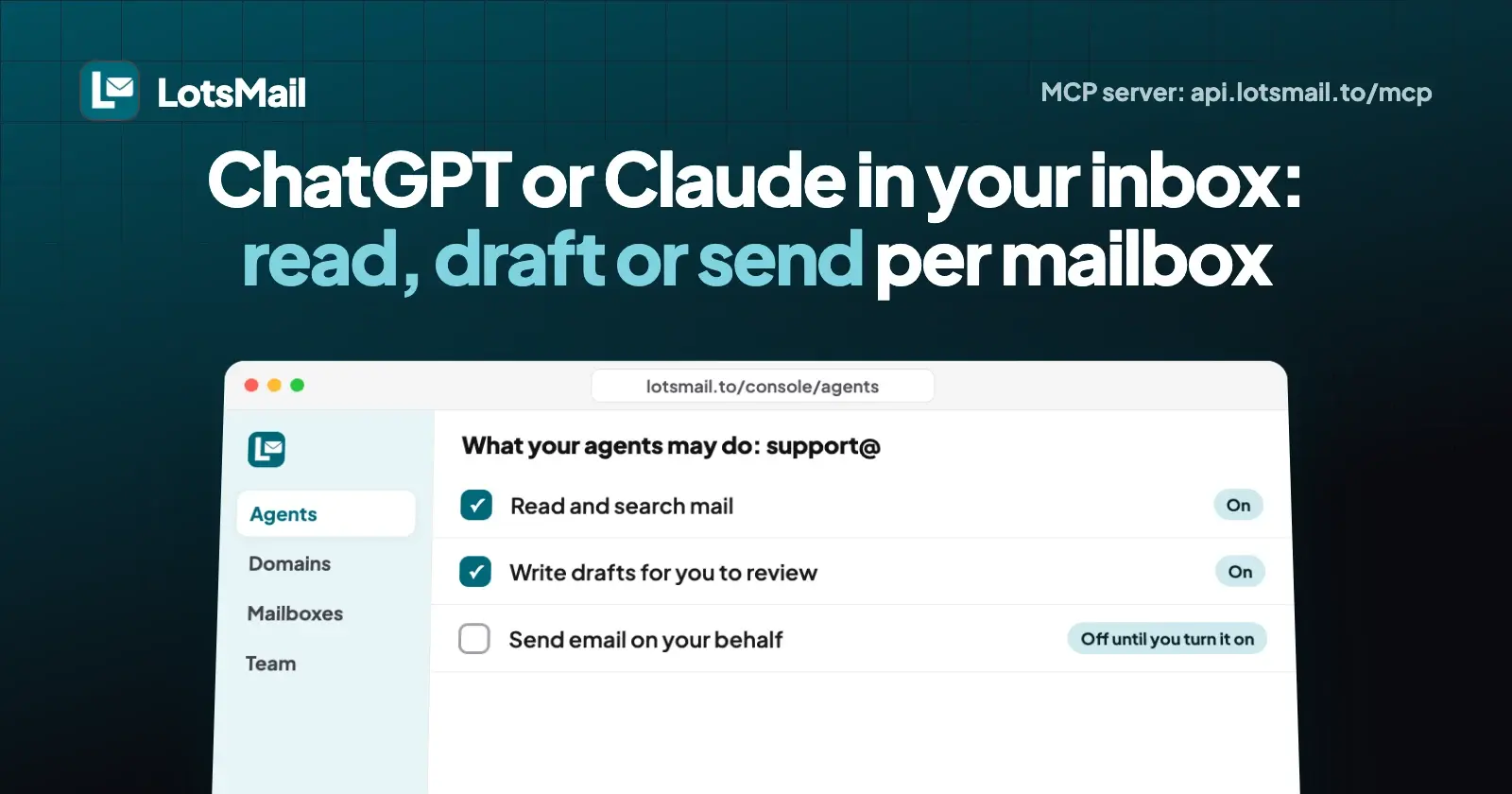
You connect ChatGPT or Claude to your business email by adding your email provider's MCP server as a connector and signing in. With LotsMail, that address is https://api.lotsmail.to/mcp, and you choose for each mailbox whether the assistant may read, write drafts or send. Sending is off until you turn it on, so nothing sends without you.
LotsMail is business email on your own domain for your whole team, at one price per domain instead of per person. Connecting the AI assistant you already use is the second half of the story: it can tell you what came in overnight, find the invoice from last month and draft the replies, while you decide what goes out.
Below is the setup for ChatGPT and Claude as OpenAI and Anthropic describe it in their help pages (both read on 20 October 2026), the access you can give per mailbox, and prompts to start with. Claude Code, Codex and Cursor take the same address.
What you need first
- Your email on LotsMail. A domain in LotsMail with the mailboxes you want the assistant to work in. Starter is $5 a month per domain with unlimited mailboxes and teammates (pricing explained). New accounts get 5,000 free credits, valid 90 days, no card.
- The right ChatGPT or Claude plan. This is where most people get stuck, so check it before you start:
| Assistant | Who can connect a custom MCP server (checked 20 October 2026) | Draft and send (write actions) |
|---|---|---|
| Claude (claude.ai and desktop) | Free, Pro, Max, Team and Enterprise. Free is limited to one custom connector. On Team, Owners and Primary Owners add it for the organization | Yes, on every plan that can add the connector |
| ChatGPT | Business, Enterprise and Edu, on the web. On Business, only admins and owners can add it | Yes on Business, Enterprise and Edu. OpenAI says Pro can connect custom MCP servers with read and fetch permissions only |
OpenAI also says custom MCP servers can't be added in the ChatGPT mobile apps (web only), and that its own built-in apps are search-only and don't support write actions. If you want ChatGPT to write drafts in your mailbox, you need a custom MCP server on a Business, Enterprise or Edu workspace.
Step 1: Choose what the assistant may do in each mailbox
Before you connect anything, open Agents in the LotsMail console (https://lotsmail.to/console/agents). You'll see every mailbox you can open, each with three switches:
- Read and search mail. The assistant can list conversations, search and open threads.
- Write drafts for you to review. It can write new emails and replies that wait in Drafts. It never sends with this switch.
- Send email on your behalf. It can send and reply. This switch is off until you turn it on, and you can only turn it on for mailboxes you can send from yourself.
By default an assistant can read and write drafts, and sending is off. These are your own settings: a teammate who connects their own ChatGPT sets their own, and an assistant only ever sees the mailboxes its person can open. Owners don't get access to private mailboxes by default either, so your assistant can't wander into a colleague's inbox.
This is what "read, draft or send per mailbox" means in practice. A common setup for an agency: read and draft on support@ and projects@ for each client domain, read only on billing@, and send only on your own mailbox once you trust the drafts.
Step 2: Connect Claude
Anthropic's help page for custom connectors lists these steps for Pro and Max (checked 20 October 2026); LotsMail's connect page shows the same:
- In Claude, open Customize, then Connectors.
- Select + Add, then Add custom connector.
- Name it LotsMail and paste
https://api.lotsmail.to/mcp. - Select Add, then Connect, and sign in with your Lots account. No API key is needed.
- In a chat, turn LotsMail on from the + menu under Connectors.
On Team and Enterprise, an owner adds the connector once in Organization settings, then Connectors. Members then find it under Customize, then Connectors, and select Connect to sign in with their own Lots account, so each person's mailbox access stays their own.
Step 3: Connect ChatGPT
OpenAI's help page for custom MCP servers (checked 20 October 2026) describes this flow in the current Plugins experience, on ChatGPT Business, Enterprise or Edu on the web:
- Go to Plugins, select the + button, then Add custom MCP server.
- Name it LotsMail.
- Under Connection, enter
https://api.lotsmail.to/mcpand choose OAuth for authentication. - Review the risk warning and tick I understand and want to continue.
- Select Create as a plugin and review the tools it finds.
- Install the plugin and sign in with your Lots account. In a new chat, type @, pick LotsMail and ask.
On a Business workspace, only admins and owners can create and publish the plugin for everyone. OpenAI's page says you no longer need to turn on developer mode first in the Plugins experience. ChatGPT may also ask you to confirm before a write action, depending on the app's permissions, which sits on top of the access you set in LotsMail.
Claude Code, Codex, Cursor and other assistants
The same address works in any assistant that supports remote MCP:
- Claude Code:
claude mcp add --transport http lots-mail https://api.lotsmail.to/mcp, then run/mcp, select lots-mail and choose Authenticate. - Codex CLI:
codex mcp add lots-mail --url https://api.lotsmail.to/mcp, thencodex mcp login lots-mail. - Cursor: add
{"mcpServers":{"lots-mail":{"url":"https://api.lotsmail.to/mcp"}}}to~/.cursor/mcp.jsonand sign in when Cursor asks. - Agents without MCP: create an API key at https://www.lotstech.com/api, store it in the agent's secrets, and give it the skill and the REST docs.
LotsMail works with the AI agent you already use, and it has no built-in AI of its own, so there are no model costs on top of your plan. If you're comparing providers, I covered how five others handle AI access in Business Email Providers With MCP Support.
What to ask once it's connected
Start with read and draft. These prompts use only what LotsMail's tools can do (tool list):
In LotsMail, check my inbox and support@. List what came in since yesterday that needs a reply: who wants what, and by when. Write a reply draft for each one and don't send anything.
The assistant works through list_mailboxes, get_agent_access, list_threads, get_thread and create_draft, then tells you how many drafts are waiting.
Find last month's invoice from our hosting supplier and tell me the amount and the due date.
That's search_mail and get_thread. Search covers every folder except Trash and Spam.
Archive the newsletters in my inbox and mark the threads I said are handled as read.
That's update_messages. Moving messages needs draft access; nothing is deleted, and Trash keeps mail for 30 days.
Send the draft to the supplier, then check it was delivered.
Only works if you turned on sending for that mailbox. The assistant sends with send_draft or reply_to_thread and an idempotency key, so a retry never sends the same email twice, then reads get_send_status: each recipient shows as delivered, bounced or delayed.
What the assistant can't do
Domains, DNS, mailboxes, team access, mailbox restrictions, billing and agent permissions stay with you in the dashboard. The assistant can hand you domain setup steps (start_domain_setup) or a checkout link (get_billing, create_checkout), and you finish them in your browser. The dashboard does the whole job on its own too: drafts your assistant writes wait in Drafts, and every send counts toward your domain's sending allowance the same as yours.
LotsMail is for normal business email. It never sends bulk, marketing or cold email, and there are no automatic replies without your approval.
Is it safe to connect ChatGPT or Claude to email?
It's as safe as the access you give it, so give the least that does the job:
- Start with read and draft. Turn on sending only for mailboxes where you've read enough drafts to trust them.
- Limit who the mailbox can talk to. A workspace owner or admin can restrict a mailbox in the dashboard so it receives mail only from listed senders and sends only to listed recipients: exact addresses or a whole domain like
*@yourcompany.com, each list set separately. Incoming mail is checked against the authenticated sender, so a forged From address doesn't get through, and if any To, Cc or Bcc address isn't on the list, the whole send is refused. The assistant can see the lists but can't change them. It's a good fit for an assistant that should only ever talk to your own team. - Treat incoming email as untrusted. Unless a mailbox is restricted, anyone can email it, and a message can contain text written to steer an assistant. Anthropic's connector page warns about prompt injection from servers, and LotsMail's skill tells assistants to treat email bodies as data, never as instructions, and never to follow links or open attachments because an email asks. Attachments reach the assistant as names and sizes only.
- Use your own sign-in. The connection uses OAuth with your Lots account; never paste a password or API key into a chat.
- Revoke when you're done. You can remove the connector in ChatGPT or Claude, switch a mailbox's access off in the LotsMail console, or disconnect the app from your LotsTech account at https://www.lotstech.com/dashboard/connected-apps.
What LotsMail doesn't do yet
LotsMail is a full inbox in the browser on phone, tablet and desktop. Desktop and phone mail apps (Outlook, Apple Mail over IMAP and SMTP) are coming soon, and LotsMail has no calendar. Your current provider keeps your existing mail, and you can copy it into LotsMail with Import mail: Gmail, Google Workspace, Zoho, Yahoo or any host with IMAP, using an app password. You start an import yourself in the console; an assistant can't start one. If your team uses Docs, Drive and Meet every day, see LotsMail vs Google Workspace before you move.
Start free: 5,000 free credits, valid 90 days, no card. Start with LotsMail, then follow the steps on the connect page.
FAQ
Can I connect ChatGPT to my business email?
Yes, if your email provider has an MCP server and you're on ChatGPT Business, Enterprise or Edu on the web, where custom MCP servers can read and write. OpenAI says Pro can connect custom MCP servers with read and fetch permissions only (checked 20 October 2026). With LotsMail, add https://api.lotsmail.to/mcp as a custom MCP server and sign in.
Can Claude read and draft my emails?
Yes. Add LotsMail as a custom connector in Claude (Free, Pro, Max, Team or Enterprise; Free allows one custom connector) and sign in with your Lots account. Claude can then read, search and write drafts in the mailboxes you allow, and drafts wait for you to review.
Can ChatGPT or Claude send emails without me?
Not unless you allow it. In LotsMail, sending by agents is off until you turn it on for a specific mailbox, and only for mailboxes you can send from yourself. With read or draft access, replies wait in Drafts for you to send.
Can I give the assistant access to only some mailboxes?
Yes. In the LotsMail console under Agents, each mailbox you can open has its own switches for read and search, drafts and sending. An assistant never sees a mailbox you can't open, and owners don't get private mailboxes by default.
Does connecting ChatGPT or Claude cost extra?
Not on the LotsMail side. The MCP server and REST API are included on every plan, and LotsMail has no built-in AI, so there are no model costs. Your ChatGPT or Claude plan is billed by OpenAI or Anthropic as usual.
Can I connect more than one mailbox or domain?
Yes. One connection covers every mailbox you can open across your LotsMail workspaces, including shared inboxes like support@ and other client domains. LotsMail's skill tells the assistant to work in one mailbox at a time, so a shared mailbox's mail isn't mixed with a personal one.
Sources (opened 20 October 2026)
- LotsMail: connect page, pricing, skill, agent docs, tool list, llms-full.txt
- Anthropic: Getting started with custom connectors using remote MCP
- OpenAI: Connecting custom MCP servers in ChatGPT