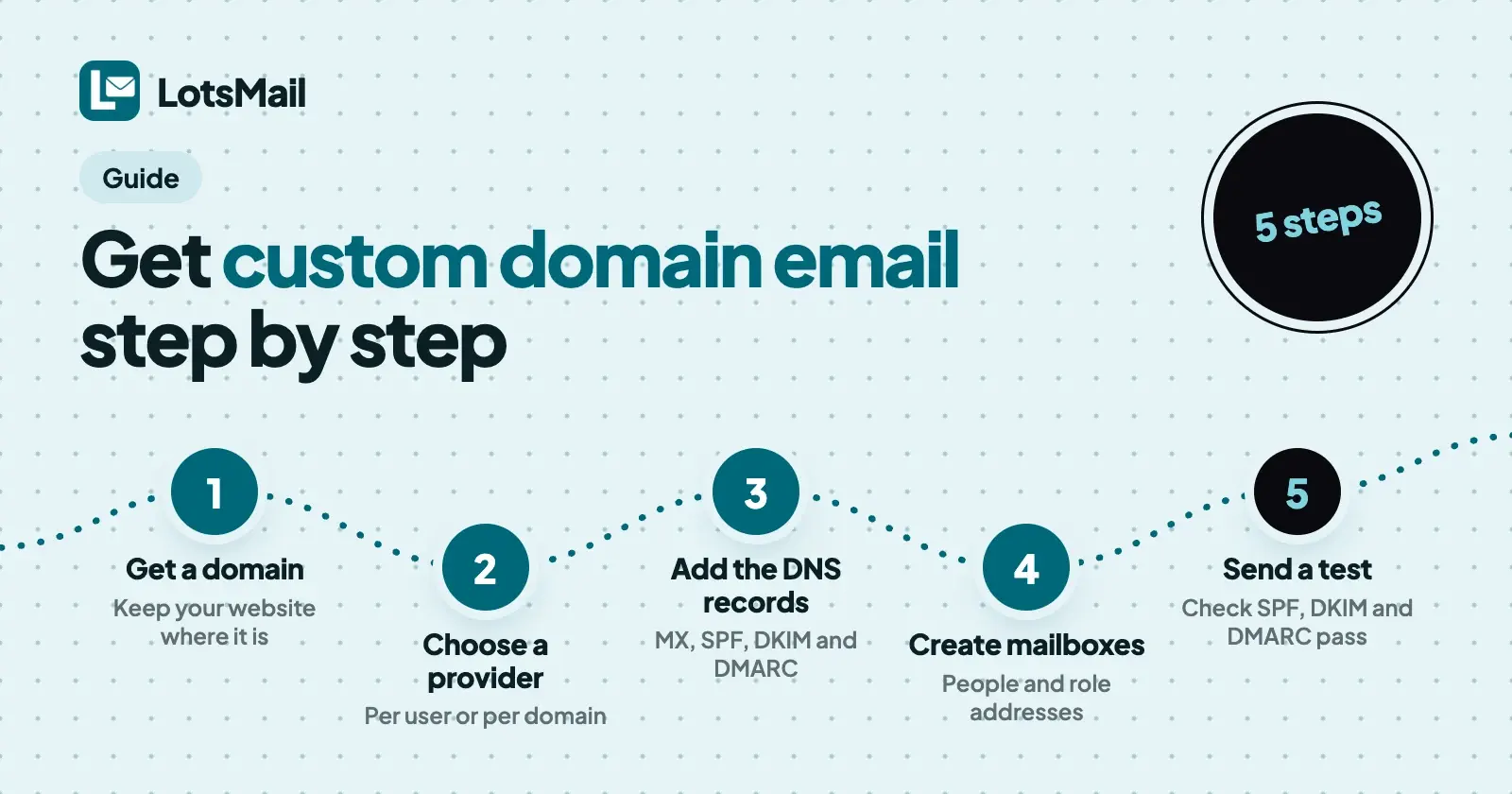
To get custom domain email you need four things: a domain you own, an email provider, DNS records that point the domain at that provider (MX, SPF, DKIM and DMARC), and a mailbox for each address. Add the records, create the mailboxes, send a test, and you have you@yourbusiness.com. Below are the steps for any provider, then the same steps in LotsMail.
An address on your own domain is what makes hello@ and orders@ look like a business on a quote, an invoice or a reply. The setup is the same whichever provider you pick. What changes is the price model and what comes with it, so I put a short comparison in step 2. Everything about Google and Microsoft below comes from their own admin documentation, and every price is a list price I opened on 24 October 2026 (LotsMail prices rechecked on 26 October 2026), in US dollars before tax.
Step 1: Get a domain
A domain is the yourbusiness.com part of the address. You buy it from a registrar, which is also where its DNS records usually live. Microsoft's setup guide puts it plainly: after you add the records, the domain stays registered with the registrar you bought it from, and the email provider just uses it.
That means three things for an owner:
- You can buy the domain anywhere and use email from a different company.
- Your website can sit with a third company. Website records and email records are separate lines in the same DNS list, so adding email doesn't move your site.
- Write down where the DNS is managed. You'll paste records there in steps 3 and 4.
If you already own the domain, skip to step 2. If your website is built by someone else, ask them who manages the domain's DNS before you change anything.
Step 2: Choose an email provider
The providers differ in how they charge, and that decides your bill as the team grows. Price per person grows with every hire. Price per domain stays flat for everyone on it.
| Provider | You pay for | Entry price (checked on 24 October 2026) | 5 people, per month | Mail apps and calendar |
|---|---|---|---|---|
| Google Workspace | Each user | Business Starter $7 a user a month with a 1-year commitment | $35 | Gmail, Calendar, Meet |
| Microsoft 365 | Each user | Business Basic $7.00 a user a month, paid yearly | $35 | Outlook on web and mobile, Teams |
| Zoho Mail | Each user | Mail Lite $1 a user a month, billed yearly, no monthly plan; Forever Free plan for up to 5 users on one domain | $5 (or $0 on the free plan) | Paid plans: mobile and desktop apps, calendar. Free plan: no IMAP, POP or ActiveSync |
| LotsMail | Each domain | Starter $5 a month or $50 a year, unlimited mailboxes (checked 26 October 2026) | $5 | Browser inbox on phone, desktop and tablet; mail apps coming soon, no calendar |
How to read it:
- Zoho Mail is the cheapest per person, and it has a free plan. If you are one to five people and want mail apps and calendar today, it costs less than anything else in this table.
- Google Workspace and Microsoft 365 cost more because they bundle office apps, meetings and storage. Pick them if your team lives in Docs and Meet, or in Outlook, Word and Excel.
- LotsMail is priced per domain: everyone on the domain, every role address and every teammate for one price, from $5 a month. It fits several people or role addresses on one domain. It has no desktop or phone mail apps yet (Outlook and Apple Mail support over IMAP and SMTP is coming soon), so choose it if a web inbox is enough.
I compared all four, and more, on price in the best business email for small business and explained how per-domain pricing works with growing teams in unlimited business email accounts. If price is your main question, cheapest email hosting lists eight providers by cost for 1, 5 and 10 people, and says plainly where flat hosts such as Migadu and Purelymail cost less.
Whatever you choose, the next steps are the same: prove you own the domain, add records, create mailboxes.
Step 3: Verify that you own the domain
Before a provider will take mail for your domain, it asks you to prove the domain is yours. The usual proof is one TXT record that the provider gives you and you add at your DNS host. Google requires this before you can activate Gmail, and Microsoft's wizard starts with it ("add a domain and verify domain ownership"). Some registrars support Domain Connect, which lets Microsoft add the records for you with one approval. If yours doesn't, you add each record by hand.
How to add a record in any DNS host:
- Sign in to the registrar or DNS host and open DNS, Zone File or DNS Manager (the name varies).
- Add a record: choose the type (TXT, MX or CNAME), the name or host, and the value. Use
@for the domain itself. - Copy values exactly. Some hosts want the full name (
_dmarc.yourbusiness.com) and some want only the part before your domain (_dmarc). - Save, then return to the provider and press its check button.
Step 4: Add the DNS records (MX, SPF, DKIM, DMARC)
Four records do the work. Each answers one question a receiving mail server asks.
| Record | Type and name | Question it answers | Start with |
|---|---|---|---|
| MX | MX on @ | Where does mail for this domain go? | The provider's mail server, with its priority |
| SPF | TXT on @ | Which servers may send mail for this domain? | The provider's include value, one record per domain |
| DKIM | TXT or CNAME on a _domainkey name | Was this message really signed by this domain? | The key or CNAME targets the provider gives you |
| DMARC | TXT on _dmarc | What should receivers do with mail that fails SPF and DKIM? | p=none, then tighten |
MX: point incoming mail at your provider. Google's current value is smtp.google.com with priority 1 (older aspmx values still work if you started before 2023). Google says to remove any other MX records first, and that changes can take up to 72 hours. Microsoft gives you the MX value in its admin center, with the highest priority, typically 0. Whatever the provider, create the mailboxes before you switch MX, because from the switch on, all new mail for the domain goes to the new provider. Microsoft's own guide tells you to add users before updating the MX record for exactly that reason. Existing mail stays at the old provider unless you migrate it.
SPF: say who may send. SPF is a TXT record on your domain that lists the servers allowed to send for it. Google's value is v=spf1 include:_spf.google.com ~all. Microsoft's is v=spf1 include:spf.protection.outlook.com -all. A domain should have a single SPF record. If you already have one, Microsoft says to add the new include to it instead of creating a second.
DKIM: sign outgoing mail. DKIM publishes a public key in DNS so receivers can verify your messages' signatures. In Google you generate the key in the Admin console (Gmail has to be on for 24 to 72 hours first), add it as a TXT record on google._domainkey (or your chosen selector), then click Start authentication. Microsoft uses two CNAME records, selector1._domainkey and selector2._domainkey, with targets copied from its admin center. Google says DNS changes can take up to 48 hours.
DMARC: tell receivers what to do when a message fails. DMARC is a TXT record on _dmarc. Both Google and Microsoft recommend the same rollout: start with p=none, which only reports, watch the reports, then move to quarantine and finally reject, raising the percentage as you go. Google says to set up SPF and DKIM first and to wait 48 hours before turning DMARC on. Send the reports to a shared address rather than one person's inbox.
Providers that handle sending differently publish different records, so copy what your provider shows rather than the examples above. After saving a record, you can check what DNS returns with nslookup -type=TXT _dmarc.yourbusiness.com (the command Microsoft's DMARC guide uses).
Step 5: Create your mailboxes
Create a mailbox for each person (you@, sam@) and for each role you use (hello@, orders@, support@). Do it before switching MX, so no mail goes astray. Two kinds are worth separating:
- Personal mailboxes belong to one person.
- Shared mailboxes are team inboxes like support@ or info@ that several people open. In LotsMail a shared mailbox costs nothing extra (see LotsMail step 3 below).
Step 6: Set up sending
Sending is mostly done once SPF and DKIM are in place, because every message your provider sends for you is signed and checked against them. One habit keeps it healthy:
- Send normal business mail from these mailboxes. Newsletters, cold outreach and marketing blasts belong in a dedicated tool on a separate subdomain, not in your team inbox. Microsoft's advice for services you don't control is a subdomain such as
marketing.yourbusiness.com.
Step 7: Test deliverability
Test before you tell clients the new address:
- Send a message from your new address to a Gmail address and an Outlook address you control.
- Open the received message's original source or headers and look at the Authentication-Results line. Google's DKIM guide says to look for
dkim=pass. You want SPF, DKIM and DMARC to show pass. - Reply from those accounts and confirm the reply arrives in your new mailbox. That tests MX.
- Check each record with
nslookup, or the DNS check in your provider's console. - Read the first DMARC reports a few days later for senders you forgot about, such as a website form or an invoicing tool.
No setup can promise that every message lands in the inbox, but correct records and normal business mail are what put you in the best position.
Custom domain email in LotsMail, step by step
LotsMail is business email on your own domain, priced per domain, not per person. The steps below follow LotsMail's console, agent documentation and tool list as of 24 October 2026. The console walks you through four stages and checks your DNS for you.
LotsMail step 1: Add your domain and verify it
- Sign up at lotsmail.to. New accounts get 5,000 free credits, valid 90 days, no card.
- In the console, open Workspaces and create one named after the business (agencies create one per client).
- Open Domains, type your domain (for example yourbusiness.com) and press Add domain.
- Verify you own the domain. The console shows one TXT record: name
_lotsmail, valuelotsmail-verification=followed by your own token. Copy it from the console into your DNS host. LotsMail recognises your DNS provider (Cloudflare, GoDaddy, Namecheap and others) and links to its DNS page. It finds the record automatically, usually within a few minutes, and moves on. Once verified, you can delete the TXT record.
LotsMail step 2: Add the sending records
After verification the console prepares the records that let LotsMail send for your domain. They don't change where your mail goes today.
- Three CNAME records for DKIM, so your mail is signed.
- A bounce subdomain (
bounce) with one MX record (priority 10) and one SPF TXT record, so bounce reports come back to LotsMail. SPF is published on that subdomain, so you don't edit the SPF record on your main domain. - A DMARC record (
_dmarc, starting atp=none, which only reports) only if your domain has none. If you already have one, the console says so and tells you to keep it. If you have more than one, it tells you which to keep.
Each record shows Found, Not found yet or Wrong value, with a copy button for the name, the value and the priority. At Cloudflare, set the CNAME records to DNS only (grey cloud), which the console reminds you about. The console checks every 10 seconds. Once all records are found, LotsMail confirms them, which usually takes minutes and occasionally a few hours. A new domain sends up to 100 emails a day for its first 14 days, and the allowance then grows with clean delivery.
LotsMail step 3: Create mailboxes and shared inboxes
- Open Mailboxes and choose New mailbox.
- Type the address (for example
hello), the name people see when you write, and the type: Personal (one person's inbox) or Shared (a team inbox several people open, like info@ or sales@). - Create every address you use before you switch receiving. Mail sent to an address that doesn't exist on your domain is kept in Unrouted for 7 days and never bounced, and you can set a catch-all mailbox under More settings.
- For a shared inbox, open the mailbox and its Access tab, choose Add a person, and give them Can read, Can read and send or Full control. Team members see only the mailboxes they are added to, owners included. Invite colleagues under Team.
- For people who only need email, such as a client, add a mailbox user under Mailbox users. They sign in at mail.lotsmail.to with their address and a password, with no LotsTech account. You enter their personal email and they get an activation link or a one-time password (valid 72 hours) there.
Mailboxes, addresses and teammates are unlimited on every plan. LotsMail has no group email or distribution lists: use a shared mailbox for team@. If you need to limit who a mailbox can receive from or send to, a mailbox can be restricted to a list of addresses.
LotsMail step 4: Turn on receiving and switch your MX record
Step 4 of the console, Receive email in LotsMail, opens once sending works and you have created a mailbox.
- Press Turn on receiving. LotsMail switches it on, usually in under a minute. Don't change your MX records until the console tells you to.
- At your DNS host, add the MX record shown (name
@, priority 10, the mail server value shown). - Then delete the old MX records. The console lists them and names the provider they point to, for example Google Workspace or Zoho Mail. Adding LotsMail first and deleting second means mail always has somewhere to go.
- If your domain has no MX record yet, there is nothing to delete.
Mail starts arriving in LotsMail within minutes, and the console shows Live once it does. If your domain briefly has MX records for both LotsMail and the old provider, the console flags it as urgent and shows the two ways to fix it.
Your current provider keeps your existing mail, and you can copy it into LotsMail with Import mail (in the console, open Mailboxes, then a mailbox): Gmail, Google Workspace, Zoho, Yahoo or any host with IMAP, using an app password. Trash, Spam and Drafts are not imported, and the app password is deleted when the import ends.
LotsMail step 5: Send a test and read the delivery status
Sign in to your inbox at mail.lotsmail.to on your phone, tablet or computer. You get threads, search, drafts, sent, archive and attachments. Send a message to a Gmail or Outlook address you control and check the delivery status LotsMail shows for every send. Then run the header check from step 7.
What LotsMail doesn't do yet
- Desktop and phone mail apps such as Outlook and Apple Mail (over IMAP and SMTP) are coming soon. Today it's the browser inbox.
- LotsMail has no calendar or contacts, and importing from Microsoft 365 or Outlook.com is planned, with no date. If you need a calendar today, choose Zoho Mail, Google Workspace or Microsoft 365 for now.
- LotsMail isn't for newsletters, cold outreach or marketing email.
- If a payment lapses, sending stops at once, incoming mail keeps arriving for 14 days and then pauses, and your mail is never deleted.
Plans
Starter is $5 a month or $50 a year for 1 domain, Pro is $20 or $200 for 5 domains and Business is $60 or $600 for 20 domains, with white-label on every domain. On every plan each domain gets unlimited mailboxes and people, 10 GB of shared storage and 1,000 outbound deliveries a month; add-ons for more are on the pricing page. Pay as you go is $6 per domain a month from LotsTech Credits, with the same 10 GB and 1,000 deliveries as every domain. An extra domain costs your plan's rate. See pricing. If you also need a website, LotsBusiness includes LotsMail for its own domain with each paid business. Setting up many client domains? See the best email hosting for multiple domains.
Once it's live: your AI agent can help with the inbox
LotsMail works with the AI agent you already use. Connect ChatGPT, Claude or any MCP client through the connect page and ask it to sort what came in and draft replies. You choose per mailbox whether it may read, draft or send, and sending is off until you turn it on, so nothing sends without you. Domains, DNS and billing stay with you in the dashboard: an agent can fetch the setup steps and link, but it never changes your DNS.
FAQ
How do I get a custom domain email address?
Buy a domain, choose an email provider, verify the domain, add the provider's MX, SPF, DKIM and DMARC records at your DNS host, create a mailbox for each address, and send a test message. Every provider follows the same pattern. The steps above show it for Google, Microsoft and LotsMail.
How much does custom domain email cost?
For five people on one domain, checked on 24 October 2026: $35 a month on Google Workspace Business Starter (1-year commitment) or Microsoft 365 Business Basic (paid yearly), $5 on Zoho Mail Lite (billed yearly) or on LotsMail Starter, and $0 on Zoho's Forever Free plan, which has no IMAP, POP or ActiveSync. You also pay a registrar for the domain itself.
Is there a free way to get custom domain email?
Zoho Mail's Forever Free plan covers one domain and up to 5 users with 5 GB each, without IMAP, POP or ActiveSync. It's cheaper than any paid option in this guide. LotsMail starts at $5 a month per domain, with 5,000 free credits valid 90 days and no card.
Do I need to move my website to get custom domain email?
No. Your domain, website and email can be with different companies. Email adds MX, SPF, DKIM and DMARC records to the DNS list and leaves your website records alone. With LotsMail you keep your DNS provider and website, add the records the console shows, and switch your MX record when you are ready.
How long does setup take?
The clicking takes a short while. The wait is DNS. Google says MX changes can take up to 72 hours and DKIM up to 48. In LotsMail the console checks DNS every 10 seconds, finds the verification record usually within minutes, and confirms the sending records in minutes, occasionally a few hours.
Do I need SPF, DKIM and DMARC?
Google and Microsoft both tell you to set up all three. SPF and DKIM let receivers check who may send for you and that mail is signed. DMARC tells receivers what to do when a message fails those checks, and Google says to set up SPF or DKIM first. Start DMARC at p=none, which only reports, and tighten it later.
Can I use Outlook or Apple Mail with LotsMail?
Not yet. Mail apps over IMAP and SMTP are coming soon. Your existing mail can be copied in with Import mail (Gmail, Google Workspace, Zoho, Yahoo or any host with IMAP, using an app password), and LotsMail has no calendar. Today LotsMail gives you a full inbox in the browser on phone, tablet and computer.
Sources (Google, Microsoft and Zoho pages opened 24 October 2026, LotsMail pricing rechecked 26 October 2026)
- Google Workspace Admin: set up MX records, SPF, DKIM, DMARC, pricing
- Microsoft: connect your domain by adding DNS records, DMARC in Microsoft 365, DKIM in Microsoft 365, Microsoft 365 business plans and pricing
- Zoho: Zoho Mail pricing
- LotsMail: lotsmail.to, pricing, connect page, agent docs, tool list