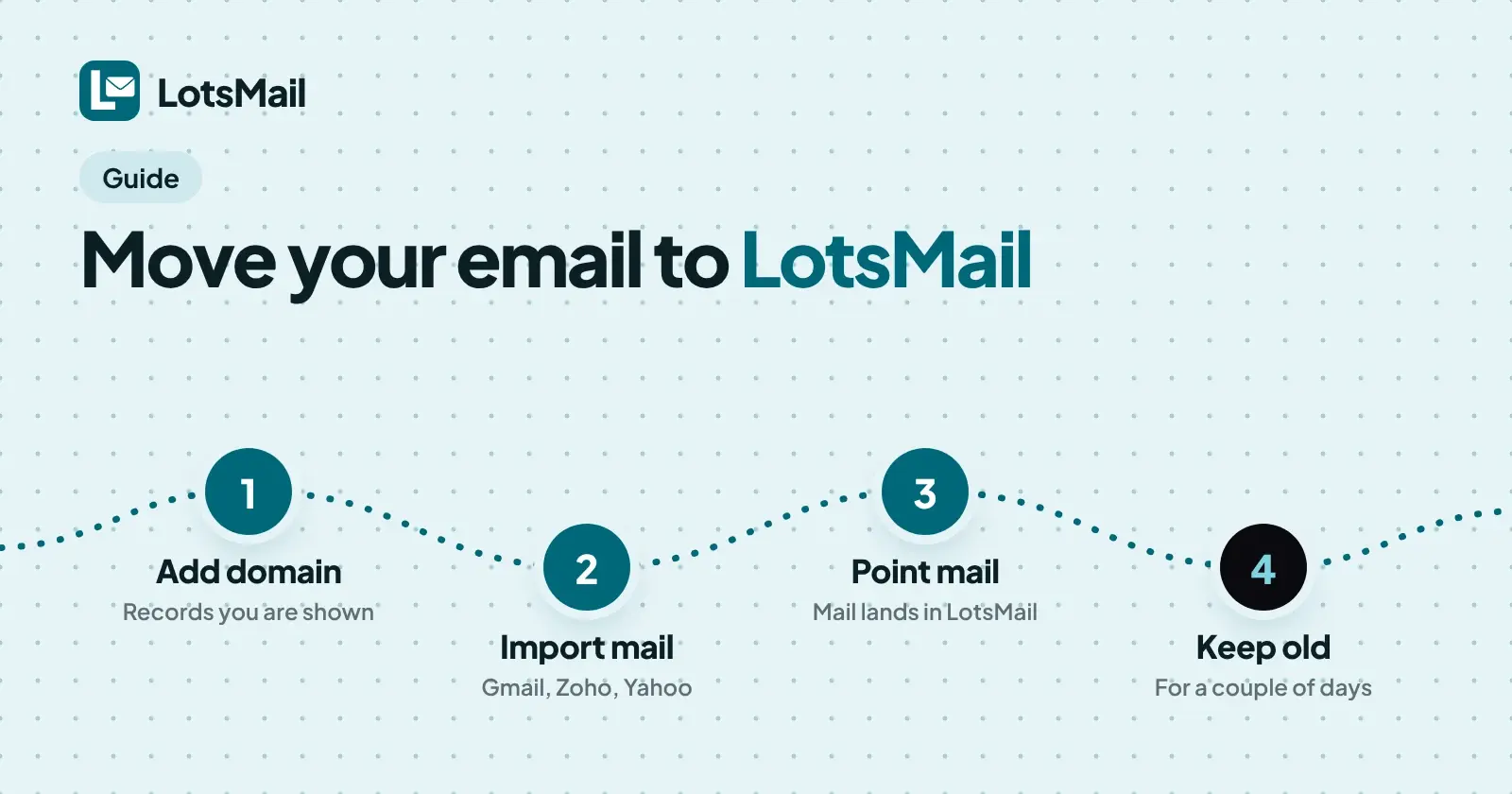
To move your email to LotsMail, connect your domain, open Console > Mailboxes, pick a mailbox and use Import mail to copy your old messages over with the old address and an app password, then point your domain's mail to LotsMail. LotsMail's import works with Gmail, Google Workspace, Zoho, Yahoo or any host with IMAP. It does not work with Microsoft 365 or Outlook.com.
I'm the founder of LotsMail, and I built it so a whole team could sit on its own domain for one price per domain instead of one per person. Moving in should not mean losing years of mail, so this is the walk-through for the four sources people ask about most. Every LotsMail step below comes from LotsMail's own help page, its agent skill file and its llms-full.txt, all opened on 13 November 2026. The steps on the Google, Zoho and Yahoo side come from those providers' own help pages, opened the same day.
What the import does, and what it leaves behind
| What LotsMail says | |
|---|---|
| Where you start it | Console > Mailboxes > a mailbox > Import mail |
| Sources | Gmail, Google Workspace, Zoho, Yahoo or any host with IMAP |
| What you give it | The old address and an app password |
| How it runs | In the background, folder by folder, skipping duplicates |
| What is kept | Dates and read and starred marks |
| What is not copied | Drafts, Spam and Trash |
| Your password | Deleted when the import ends |
| Not supported | Microsoft 365 and Outlook.com |
Two more things are worth knowing before you start:
- Your old provider keeps your existing mail. The import copies it. Nothing is taken out of the old account.
- LotsMail has no calendar, so calendars stay with your old provider for now. And LotsMail does not connect to Outlook, Apple Mail or other desktop and phone mail apps over IMAP and SMTP. You use the inbox in your browser on phone, tablet and computer, or an AI agent such as Claude or ChatGPT.
Step 1: Connect your domain and create the mailbox
You keep your DNS provider and your website. LotsMail shows you a few records to add, and then you point your mail to LotsMail when you are ready. Importing happens from a mailbox, so create the mailbox first (hello@, your own name, whatever you use today).
For the full domain walk-through, I wrote it up in How to Get Custom Domain Email, and the checks to run afterwards are in SPF, DKIM and DMARC for Your Business Email. Copy the record values from your LotsMail console, which shows each one and checks it, rather than from any post.
A plan covers the domain, and a domain covers unlimited mailboxes and people. Starter is $5 a month or $50 a year for 1 domain, and the pricing explained post has the rest. Each domain has 10 GB of storage shared by all its mailboxes, so it is worth comparing that with the size of the mail you are bringing over. Full prices are on the pricing page, and new users get free credits with no card.
Step 2: Get an app password from your old provider
LotsMail asks for the old address and an app password, not your normal password. Here is how to get one from each of the four sources. These steps are from each provider's own help page, checked on 13 November 2026.
Gmail
- Turn on 2-Step Verification. Google says app passwords can only be used with accounts that have it on.
- Create an app password on Google's App Passwords page (myaccount.google.com/apppasswords), and use the 16-digit code it shows you. Google notes that each app password can only be viewed once, and you can generate a new one any time.
- You do not need to switch IMAP on. Google's page says that since January 2025 IMAP access in Gmail with a personal Google Account is always on.
Source: Sign in with app passwords and Add Gmail to another email client, Google Help, checked on 13 November 2026.
Google Workspace
The route is the same as Gmail: LotsMail's import takes the old Workspace address and an app password. The same Google page lists reasons the app password option might not appear: 2-Step Verification set up only for security keys, being signed in to a work, school or other organization account, or Advanced Protection. If you do not see the option on a Workspace account, that is the list to check against, and your Workspace admin is the person to ask. LotsMail's documentation describes the app password route, so that is the one I am giving you.
Source: Sign in with app passwords, Google Help, checked on 13 November 2026.
Zoho
- Enable IMAP: in Zoho Mail, go to Settings, then Mail Accounts, click the primary email address, and under the IMAP section tick IMAP Access, then Save.
- If two-factor authentication is on, you need an application-specific password. In Zoho Accounts, go to Security, then App passwords, click Generate New Password, name it, and click Generate.
Source: Zoho Mail IMAP access and Zoho two-factor authentication, checked on 13 November 2026.
Yahoo
- Sign in to your Yahoo Account Security page.
- Under "External connections", click Create app password.
- Enter a name for the app, click Generate password, and copy the code.
Yahoo's page adds a tip: use a browser you have signed in to Yahoo with for several days in a row and avoid Incognito mode, because that affects whether the app password can be created.
Source: Generate and manage 3rd-party app passwords, Yahoo Help, checked on 13 November 2026.
Any other host with IMAP
LotsMail's import also takes any host with IMAP. You need the old address and an app password from that host, so check your host's help pages for how it issues one.
Step 3: Run Import mail
- In the LotsMail console, open Mailboxes and choose the mailbox you created.
- Open Import mail and enter the old address and the app password.
- Let it run. It works in the background, folder by folder, skips duplicates and keeps dates and read and starred marks.
The import sits under each mailbox, so a team repeats it for each person who has old mail to bring over. Drafts, Spam and Trash are not copied, so finish or save anything important in Drafts before you switch.
Once the import has finished, LotsMail deletes the password. I would also remove the app password on your old provider's side. Google's page describes it: open your App Passwords, find the one you made, and click Remove.
Step 4: Move your contacts
Import mail copies messages, not your address book. For contacts, export them as a CSV file from Google Contacts, Outlook or a spreadsheet, then choose Contacts > Import CSV in LotsMail. The file needs an Email column and can be up to 2 MB and 5,000 rows. Contacts already there keep their details, only empty fields are filled in, and rows without a valid email are skipped and listed. A mailbox holds up to 10,000 contacts.
Step 5: Point your mail and keep the old account open
New mail arrives in LotsMail once you point your domain's mail to it. Until then, mail keeps going to your old provider. After you switch, keep your old account open for a couple of days, because some senders take a while to catch up. Create every address you use before you switch, so nothing bounces.
If you used forwarding aliases before, such as team@ or sales@, a group is the closest match in LotsMail: make it in Console > Groups, choose who is in it, and each person gets their own copy. Groups are included on every plan. Email Forwarding or a Real Mailbox? explains when each one fits.
If your source is not on the list
- Microsoft 365 and Outlook.com: LotsMail can't import these.
- Files such as PST or mbox exports: LotsMail's documentation describes importing over IMAP only, so I do not have steps for file imports.
- Another host with IMAP: use the same Import mail flow with an app password from that host.
After the move
LotsMail works with the AI agent you already use. Connect Claude, ChatGPT or any MCP client from the connect page, and your agent can search and read the mail you imported. You choose per mailbox whether it may read, draft or send, and sending is off until you turn it on.
FAQ
Can I import my old email into LotsMail?
Yes. In the LotsMail console, open Mailboxes, choose a mailbox, then Import mail. It copies old mail from Gmail, Google Workspace, Zoho, Yahoo or any host with IMAP, using the old address and an app password. It runs in the background folder by folder, skips duplicates and keeps dates and read and starred marks.
Does the import copy Drafts, Spam and Trash?
No. Drafts, Spam and Trash are not copied. Everything else is copied folder by folder, and the app password you typed in is deleted when the import ends.
Can I move email from Microsoft 365 or Outlook.com?
No. LotsMail can't import mail from Microsoft 365 or Outlook.com. Import mail works with Gmail, Google Workspace, Zoho, Yahoo or any host with IMAP.
When can I close my old email account?
Keep your old account open for a couple of days after you point your domain's mail to LotsMail, because some senders take a while to catch up. Your old provider also keeps your existing mail until you close it.
Do my contacts move with the import?
Not with Import mail. Export your contacts as a CSV file from Google Contacts, Outlook or a spreadsheet, then choose Contacts, then Import CSV in LotsMail. The file needs an Email column and can be up to 2 MB and 5,000 rows.
What does LotsMail cost after I move?
LotsMail is priced per domain, not per person. Starter covers 1 domain for $5 a month or $50 a year, Pro covers 5 domains for $20 a month or $200 a year, and Business covers 20 domains for $60 a month or $600 a year. Every domain has unlimited mailboxes and people, 10 GB of shared storage and 1,000 sent emails a month. New users also get free credits with no card.