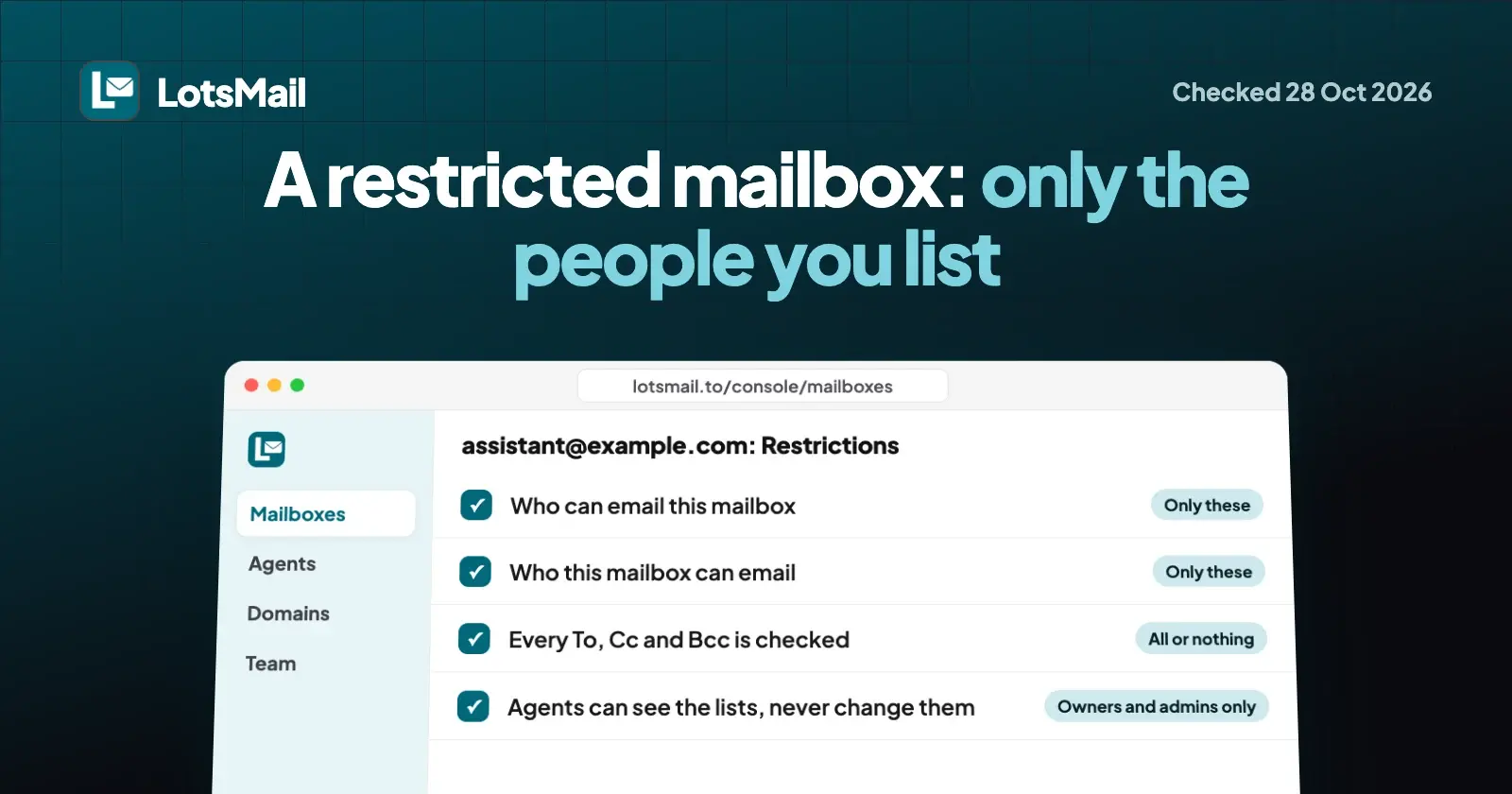
A restricted mailbox in LotsMail receives only from the senders you list and sends only to the recipients you list. That applies to everyone who uses the mailbox, your AI agent included, and only a workspace owner or admin can change the lists, in the dashboard. If one address on a send is off the list, the whole message is refused.
So the mailbox you hand to an assistant, a new hire or a contractor can't send email to anyone you haven't named. It limits that mailbox, not everything else your agent can open, and the edges are listed below. This guide covers how to set it up, what happens on each send and each incoming message, and where a restricted mailbox stops, so you know what else to switch on. Everything below comes from LotsMail's own docs, changelog and product behaviour, checked on 28 October 2026.
What a restricted mailbox is
Every mailbox has two lists, set separately:
| Who can email this mailbox | Who this mailbox can email | |
|---|---|---|
| Open (the default) | Anyone | Anyone |
| Restricted | Only the senders you list | Only the recipients you list |
You can restrict one direction, both, or neither. A list entry is either a full address like you@example.com or a whole domain written *@example.com. A list holds up to 200 entries, and "Only these" needs at least one entry.
Two matching details that save you a support email: *@example.com matches addresses on example.com itself, not on a subdomain like mail.example.com, and an entry for jane@example.com doesn't match jane+invoices@example.com. List each one you want.
When a business owner would use one
- A mailbox for your AI assistant. Make
assistant@example.com, restrict it to*@example.comin both directions, and let your AI agent work in it. The agent can read, draft and (if you allow it) send from that mailbox, but only between you and your own team. It still acts as you in your other mailboxes, so see "Where a restricted mailbox stops". - A mailbox for a bookkeeper or a new hire. List your team and the one outside address they need. Anything else can't go out, whoever types it.
- A mailbox that only takes mail from known suppliers. Restrict who can email
orders@example.comto your suppliers' domains, and mail from anyone else isn't delivered to it. - A mailbox that only ever writes to your accountant. Restrict the sending side to one address.
The names and domain here are made up. Use your own.
How to set it up
- Open the LotsMail console, go to Mailboxes and open the mailbox. Only workspace owners and admins see the Restrictions tab.
- Under Who can email this mailbox, pick Only these and type the allowed senders, one per line.
- Under Who this mailbox can email, pick Only these and type the allowed recipients, one per line.
- Click Save restrictions. The mailbox now carries a Restricted badge in your mailbox list, and the tab reads "Restrictions (on)".
- Open Agents and check the three switches for that mailbox: read and search, write drafts, and send. New mailboxes start with read and drafts on and sending off.
Restrictions are dashboard-only. An agent can see the lists but can't change them, and neither can a mailbox user or a mailbox manager who isn't an owner or admin. Every change is recorded with the old and new lists.
What happens when something is sent
LotsMail checks every To, Cc and Bcc address against the send list. This covers a message typed in webmail, one sent by your agent, and one sent through the API.
- One address off the list refuses the whole message. Nothing is sent to the listed recipients either. The refusal is
recipient_not_allowed, it names the addresses that aren't allowed, and it points to the owner or admin who manages the list. - The check runs again at send time. If you tighten a list while a message is queued, the queued message isn't sent.
- Reply all counts everyone. A reply-all that would reach someone off the list is refused as a whole. A plain reply goes through when the person you're replying to is on the send list.
- Drafts are not sent. A draft can exist with any recipient; the list decides when it is sent.
What happens when something arrives
For a mailbox that only accepts listed senders, LotsMail delivers a message only when the sender is on the list and their domain proves the message really came from them. A forged From address doesn't get through. In practice that means the message passes the sender domain's DMARC check, or, for a domain with no DMARC record, passes SPF or DKIM aligned with the From domain.
Mail that doesn't qualify isn't delivered to the mailbox, so nobody who uses it, agents included, sees it. LotsMail doesn't send a bounce back to the sender, because a bounce to a forged address would land on an innocent third party.
Two practical points:
- Test it once. After you save, send a message from a listed address and one from an unlisted address, such as a personal Gmail account, and confirm the first arrives and the second doesn't.
- If a listed sender says their mail didn't arrive, the likely cause is on their side: their domain's email authentication is missing or misaligned. Ask them to check their SPF, DKIM and DMARC setup.
What your AI agent sees and can do
LotsMail works with the AI agent you already use: ChatGPT, Claude, Claude Code, Codex, Cursor or any MCP client. It signs in to https://api.lotsmail.to/mcp with your Lots account; the connect page has the steps for each one.
list_mailboxes and get_agent_access both return a mailbox's restrictions: who it can receive from and who it can send to. LotsMail's skill tells the agent to write only to the listed addresses and, if a send is refused, to tell you what to change instead of working around it. You could ask:
List my mailboxes and tell me which ones are restricted, and who each one can send to.
or, on the assistant mailbox:
Read the unread threads in assistant@example.com and draft replies. Don't send anything.
The agent can read, draft and send within the switches you set and the lists you wrote. It can't edit a list, add a sender to it or turn a restriction off.
Three controls, three jobs
A restricted mailbox is one of three controls, and each answers a different question.
| Control | What it decides | Who sets it |
|---|---|---|
| Mailbox access | Which people can open the mailbox | Owners, admins and mailbox managers |
| Agent access (read, draft, send) | What your agent may do in each mailbox you can open | You, per mailbox, in Agents. Sending is off until you turn it on |
| Restrictions | Who the mailbox can receive from and send to | Workspace owners and admins, in the dashboard |
Use all three together. Agent access decides whether the assistant can reach the mailbox at all and whether it can send. Restrictions decide who a send can reach and whose mail gets in.
Where a restricted mailbox stops
A restricted mailbox is a list of who can email whom. It is not a content filter and it isn't an access lock on everything your agent might touch. Knowing the edges tells you which other control to use:
- It doesn't hide a mailbox's mail from your agent. To keep an agent out of a mailbox, switch off its read access in Agents.
- It applies to each mailbox, not to the agent as a whole. Your agent acts as you, in every mailbox you can open. Restrict each mailbox you want limited, and switch off agent access on the ones the agent shouldn't use.
- It doesn't judge what a listed sender writes. Treat email as data, never as instructions; LotsMail's skill tells assistants to do the same. A
*@example.comentry trusts everyone who can send mail from that domain, so list individual addresses when you want it tight. - It can't control what a listed recipient does next. Once your assistant's mailbox sends something to a colleague, that colleague can forward it.
- It's not a compliance archive or a policy engine. There is no content scanning, eDiscovery or single sign-on layer here.
For founders and growing teams
Give each role its own rule. support@ can stay open to anyone because customers write to it; the mailbox your assistant works in can be locked to your team domain. If your agent reads a mailbox that strangers can write to, anyone can put text in front of it, so keep agent-facing mailboxes restricted on the receiving side too. Set rules by role, not by person, and use *@yourcompany.com for team-wide entries.
For agencies running client domains
If you run mail for clients' domains, a restricted mailbox is a rule you set per mailbox. For a freelancer you give a mailbox on a client's domain, list your team and the client: *@youragency.com and *@client.com. Only an owner or admin of that workspace can change the lists, so the freelancer, or an agent working for them, can't widen them. More on running client domains: business email for agencies.
What it costs
Restricted mailboxes aren't an add-on and carry no extra charge. LotsMail is priced per domain, with unlimited mailboxes and people on every domain. Plan prices, checked on 28 October 2026 on lotsmail.to/pricing and the live pricing catalogue:
| Plan | Monthly | Yearly | Domains |
|---|---|---|---|
| Starter | $5 | $50 | 1 |
| Pro | $20 | $200 | 5 |
| Business | $60 | $600 | 20 |
New accounts get free credits when they sign up, no card, enough to run one domain for about a month. More on how the plans work: LotsMail pricing explained.
FAQ
Can my AI agent change or remove a restriction?
No. Only a workspace owner or admin can change a mailbox's lists, and only in the dashboard. An agent can read the lists through list_mailboxes and get_agent_access, but it can't edit them, including an agent signed in as the owner.
What happens when my agent tries to email someone who isn't on the list?
The whole message is refused with recipient_not_allowed, and nothing goes to anyone, including the listed recipients on the same message. The error names the addresses that aren't allowed. Add an address to the list in the dashboard if it should be allowed.
Does a restricted mailbox bounce mail from senders who aren't listed?
No. The message isn't delivered to the mailbox, so nobody who uses it, agents included, sees it, and LotsMail doesn't send a bounce back to the sender.
Can I restrict only sending, or only receiving?
Yes. The two lists are separate. You can limit who the mailbox can email and leave incoming mail open, or the other way round.
How do I allow a whole company?
Write the domain as *@example.com. It matches addresses on example.com itself, not on subdomains like mail.example.com.
Is a restricted mailbox a security guarantee?
It's a precise rule about who a mailbox can email and receive from, enforced on every send and every incoming message. It's one of three controls, alongside access to the mailbox and agent access, and it doesn't read or judge message content. Use the three together for an agent you want to keep inside your team.
Sources
All opened on 28 October 2026:
- LotsMail: pricing, connect page, skill, API docs, changelog entry "Restricted mailboxes: choose who a mailbox can email" (20 October 2026)
- Related on this blog: is LotsMail safe, connect ChatGPT or Claude to your business email